
This guide will help you get up and running quickly with your Libre Wave instruments.
Libre Wave sample libraries run inside our free and open source player, Rhapsody. It’s available for Windows, macOS, and Linux. It works completely offline, imposes no DRM, and does not track you.
Rhapsody is available as a standalone application, and a plugin in VST3, AU, and AAX formats, depending on your operating system.
Click here to download Rhapsody. Then come back to this guide to continue.
Downloading Your Instruments
Click here to create an account or sign in to your existing account.
Once logged in you can click the user account icon in the top-right corner of the page to view your account.
Click on the Products tab to see a list of the instruments you own.


Next, click on the product you want to install.
You’ll be taken to the Product Details tab which will show a brief description of the instrument and a list of files available for download.
Rhapsody instruments are supplied as one or more .hr files. Smaller instruments are usually a single .hr1 file. Larger instruments may be split across several files, such as .hr1, .hr2, .hr3, and so on.
Make sure to download all of the package files for the instrument you’re installing and place them all in the same folder.
Video Guide
Prefer to watch? The video below covers the same information as the rest of this guide, showing what to do after downloading an instrument.

Installing an Instrument
- Launch Rhapsody, either the standalone app or as a plugin – I recommend using the standalone here.
- Click the plus (+) button at the bottom of the Rhapsody window to open the instrument installer.
- Click the folder icon and select the
.hr1package file. - Click OK to confirm your selection.
- On the next screen, click the folder icon to select a location to store the instrument’s samples. If you’re updating an existing instrument then you won’t see this screen. Rhapsody automatically creates a subfolder named after the instrument at the selected location.
- Click Install and wait for the samples to be unpacked.
- Once installation is complete, Rhapsody asks whether you want to delete the
.hrpackage files. These files aren’t needed to use the instrument, so you can safely delete them if you don’t need to keep them for a later reinstallation. - Restart Rhapsody and it’s ready to use.
When choosing where to install the samples, you can also choose between using 16-bit or 24-bit files.
16-bit samples use less disk space and are suitable for most instruments.
24-bit samples use more disk space and are better for plucked strings, percussion, or when you plan to apply processing and effects.
Loading an Instrument
After installation completes and you’ve restarted Rhapsody, your instrument will appear within the instrument grid. Click the instrument’s image to load it.
Rhapsody loads one instrument at a time. If you want to use several instruments together, you can load multiple instances of Rhapsody in your DAW.
To unload the current instrument and return to the instrument grid, click the back arrow in the top-left corner of the instrument’s interface.
Some older or third-party instruments may place the back arrow in a different location or use a different icon.
Moving an Instrument’s Samples
You can move an instrument’s samples to another location after installation. For example, you might want to move a library to a different hard drive.
After moving the samples, Rhapsody won’t know where to find them and may display an error or report that it can’t find the sample root folder when you try to load the instrument.
To tell Rhapsody where the samples are now located, follow these steps:
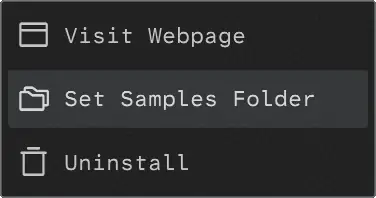
- Click the three-dot menu below the instrument image in the instrument grid.
- Select Set Samples Folder.
- Click the folder icon and select the folder that contains the instrument’s samples – they will have a .ch1 extension.
- Click OK, then click OK again.
- Restart Rhapsody and launch the instrument.
Still not loading?
If the instrument still can’t load after relocating the samples, some files may be missing. The quickest solution is usually to download the installation package again and reinstall the library.
Checking for Updates
About once a month Rhapsody will ask if you want to check for updates. You can also start an update check manually from the Gear icon menu in the bottom left corner of the Rhapsody window.
Rhapsody itself doesn’t download any files. It just lets you know when updates are available.
The update checker will look for new versions of Rhapsody as well as the instruments you have installed. No personal data or tracking information is sent or stored when checking for updates.
When a new version of Rhapsody is available, a message will be displayed with a button to take you to the Rhapsody page where you can download the latest installer.
When Rhapsody finds a new version of an instrument, a bell icon will appear over the instrument’s image in the grid.
To get an instrument update click the three-dot menu below the instrument’s image and select Visit Website. This opens the developer’s website, where you can log in and download the updated installation package.
For the instrument update checker to work, the developer of the instrument must have included support for it. All Libre Wave instruments do.
Uninstalling an Instrument
Follow these steps to remove an installed instrument:
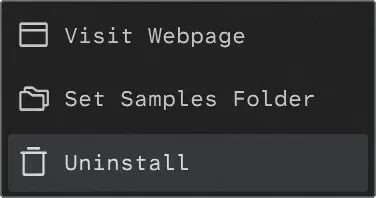
- Open the three-dot menu below the instrument image.
- Select Uninstall
- Click Yes to confirm.
Rhapsody then asks whether you want to remove the instrument’s presets.
If you have made custom presets which you would like to keep, choose No. This is useful if you plan to reinstall the instrument later. Presets take up very little disk space.
Alternatively, choose Yes to remove the presets, including any custom ones you have created.
The Interface

Rhapsody’s main interface shows an instrument grid, representing all of the Rhapsody sample libraries you have installed. On first run the grid will be empty.
Clicking the Gear Icon in the bottom left opens the settings menu. From here you can change the number of instruments displayed in the grid, adjust the interface size, or check for updates.
The Rhapsody version number is shown in the bottom-right of the window.
In the top-right corner there is a search box that will filter the instruments displayed in the list. You can search by name or keyword. For example, searching for “jazz” shows instruments tagged with that keyword.
You can resize the interface using the drag handle in the bottom-right corner or with the options in the settings menu. To reset the interface size, double-click the Rhapsody logo in the top-left corner.
Support
If you have a question, find a problem, or have a suggestion, please send me a message through the contact form.