User Interface
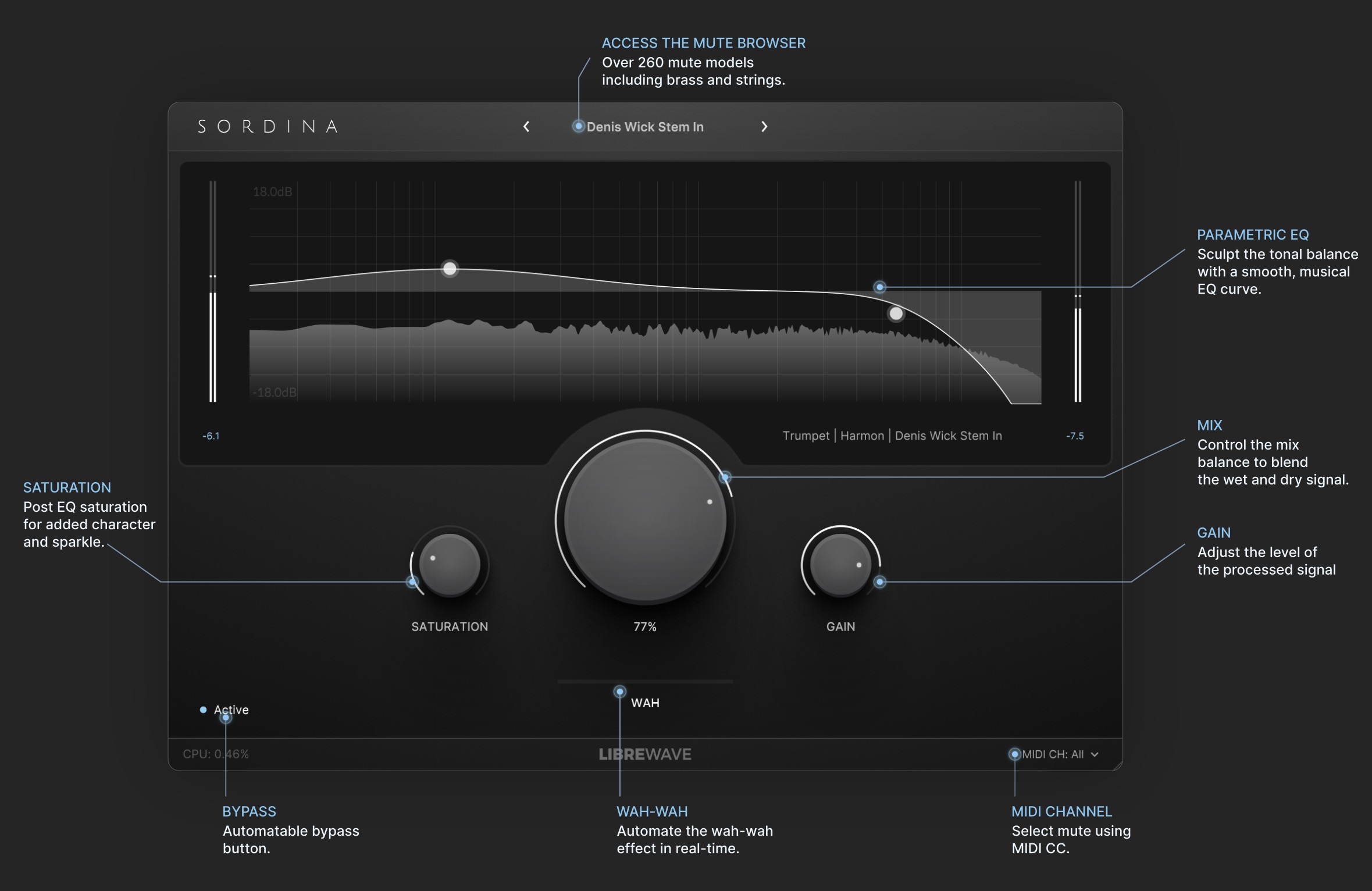
Sordina’s interface is designed to make it easy to browse mute models, shape their response, and blend the processed signal with the original audio.
Mute Selector
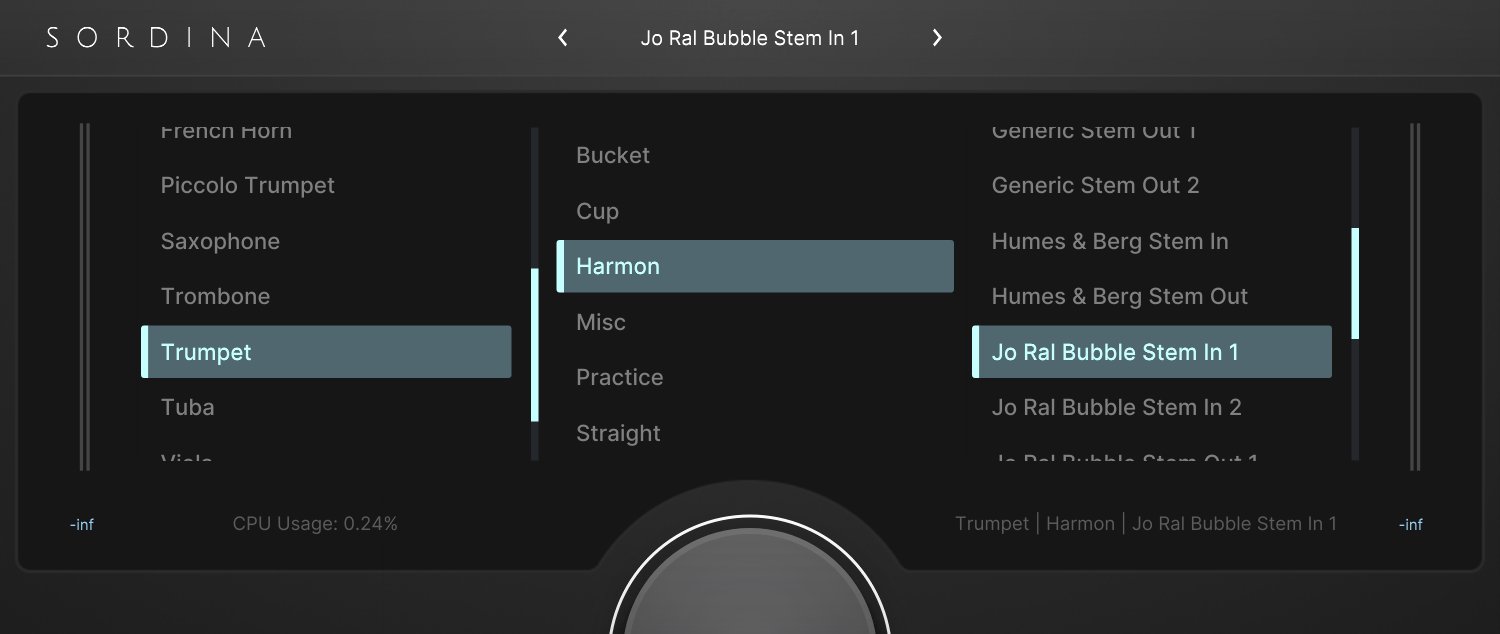
The name displayed at the top of the interface shows the currently loaded mute model.
Click the mute name to open the browser and select a different model. Use the left and right arrows to step through the available models.
EQ
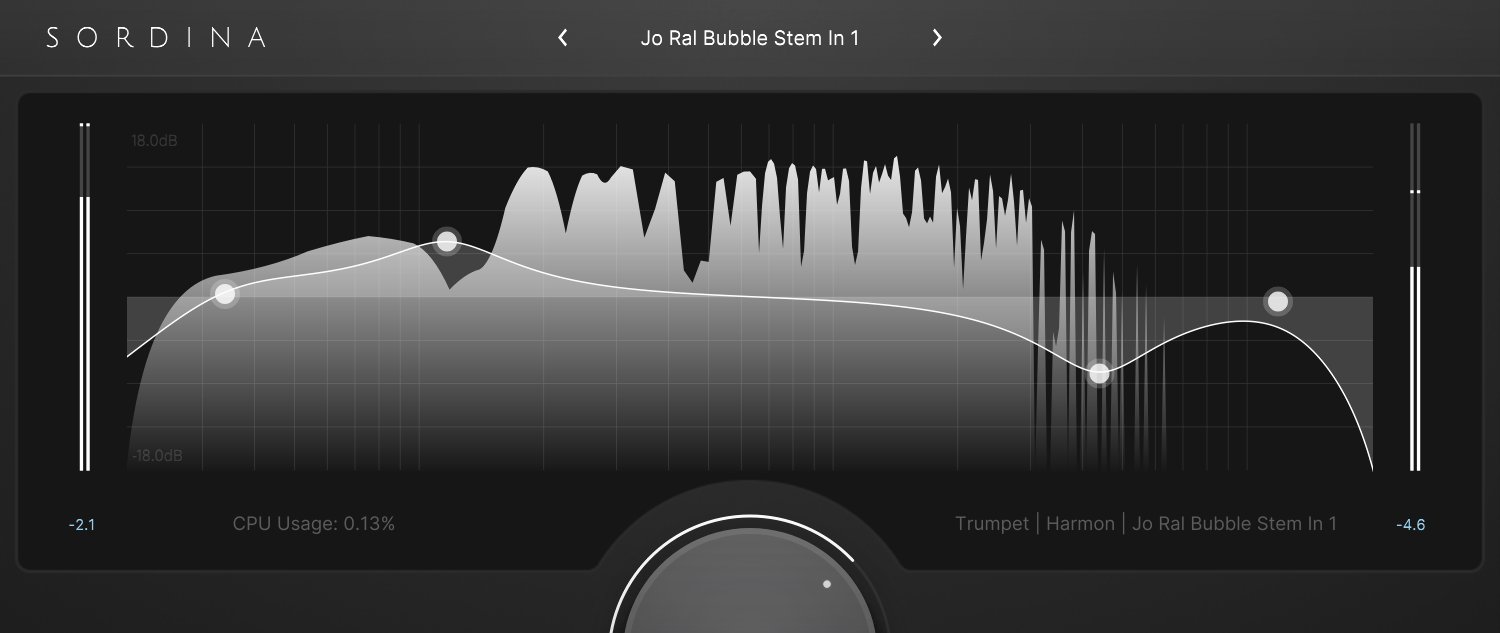
The EQ is applied after the mute model, allowing you to refine the resulting sound without changing the underlying mute response.
The central display shows the frequency response of the selected mute model. You can disable the spectrum analyser by right-clicking on the EQ graph and unchecking the analyser option in the context menu.
EQ nodes can be added to adjust the tonal of the signal. Click anywhere on the graph to create a new node.
Click and drag a node to adjust its frequency and gain. To adjust the Q (bandwidth) of a node, use the mouse wheel while hovering over it, or hold Shift and click and drag up or down.
Right-click a node to open the context menu, where you can delete the node or change its filter type. The available filter types are Low Pass, High Pass, Low Shelf, High Shelf, and Peak.
Saturation
The Saturation control applies harmonic saturation after the EQ stage.
Increasing this control can add warmth, presence, or sparkle to the processed signal.
Mix
The Mix control adjusts the balance between the processed and unprocessed signals.
- 100% applies the full mute effect.
- Lower values blend the original signal back into the output.
Gain
The Gain control adjusts the output level of the plugin.
Use this control to compensate for any level changes introduced by the mute model, EQ, or saturation.
Wah Control
The Wah slider controls the position of the wah filter for mute models that support the wah-wah effect.
This parameter can be automated within your DAW to create realistic wah-wah performances.
Bypass
The Active button enables or bypasses the plugin.
When bypassed, the incoming audio passes through Sordina without processing.
Level Meters
Input and output meters are displayed on either side of the EQ graph, allowing you to monitor signal levels before and after processing.
Quick Tips
- Hold Shift while clicking a knob to enter a specific value.
- Hold Ctrl while dragging a knob to make finer adjustments.
- Double-click a knob to reset it to its default value.
- Click the Sordina logo in the top-left corner of the interface to view information about the plugin.