Introduction
Welcome to the Sordina User Guide.
Sordina is an audio effect plugin that emulates the sound of muted brass, string, and saxophone instruments. It includes over 260 mute models, covering both traditional orchestral mutes and extended playing techniques.
While many users will choose mute models that correspond to the source instrument, this is not a requirement. Any mute model can be applied to any audio signal, making Sordina equally useful as a sound design tool. Applying brass mutes to strings, string techniques to brass, or processing synthesizers and sound effects can often produce interesting and unexpected results.
This guide explains how to install the plugin, use the interface, and get the most from the plugin.
Installation
Windows
-
Log in to your account at Libre Wave and download the Windows installer.
-
Run the installer file you downloaded, it will have a
.exeextension. -
Read and accept the licence agreement.
-
Choose which plugin formats to install:
- VST3 for most DAWs
- AAX for Pro Tools
-
Click Install and wait for the installation to complete.
-
Launch your DAW and allow it to scan for new plugins.
Sordina should now be available in your DAW’s plugin browser.
macOS
-
Log in to your account at Libre Wave and download the macOS installer.
-
Run the installer file you downloaded, it will have a
.pkgextension. -
Follow the instructions provided by the installation wizard.
-
Choose which plugin formats to install:
- VST3 for most DAWs
- Audio Unit (AU) For Logic/GarageBand
- AAX for Pro Tools
-
When the installation is complete, launch your DAW and allow it to scan for new plugins.
Sordina should now be available in your DAW’s plugin browser.
Linux
-
Log in to your account at Libre Wave and download the Linux installer.
-
Open a terminal and navigate to the folder containing the downloaded
.runfile. -
Make the installer executable:
chmod +x Sordina Installer.run # Adjust the file name to match the installer -
Run the installer:
./Sordina Installer.run # Adjust the file name to match the installer -
Follow the instructions provided by the installer.
-
Once installation is complete, launch your DAW and allow it to scan for new plugins.
Sordina should now be available in your DAW’s plugin browser.
The Linux installer installs the VST3 version of Sordina.
Quick Start
This section will help you get up and running with Sordina in just a few minutes.
Loading Sordina
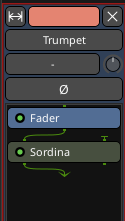
Insert Sordina as a plugin on the track you wish to process. Sordina should be placed either after a virtual instrument in the plugin chain, on a track containing audio, on an audio bus, or on the master output.
Selecting a Mute
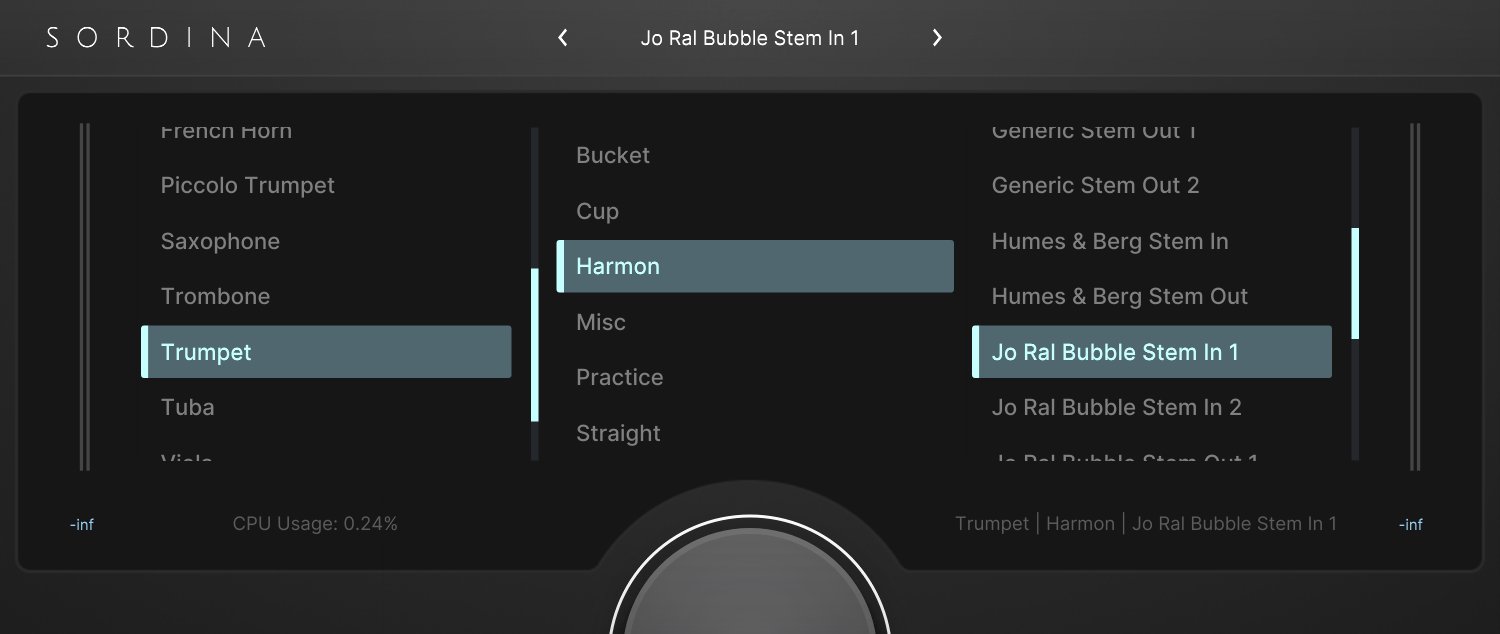
Click the text at the top of the interface, labelled “Click to Begin”, to open the mute selector. From here, you can browse the available categories and select a mute model.
Each mute model applies a different tonal transformation to the incoming audio signal. Experiment with different options to find the sound that best suits your project.
Adjusting the Wet/Dry Mix
Use the Mix knob to blend the processed and unprocessed signals.
- 100% Wet applies the full mute effect.
- Lower values blend some of the original signal back into the output.
Shaping the Sound
Adjust the Saturation and Gain knobs to fine-tune the character of the selected mute model.
Saving Presets
Sordina settings are saved automatically with your DAW project. To reuse settings across multiple projects, use your DAW’s built-in preset management system.
User Interface
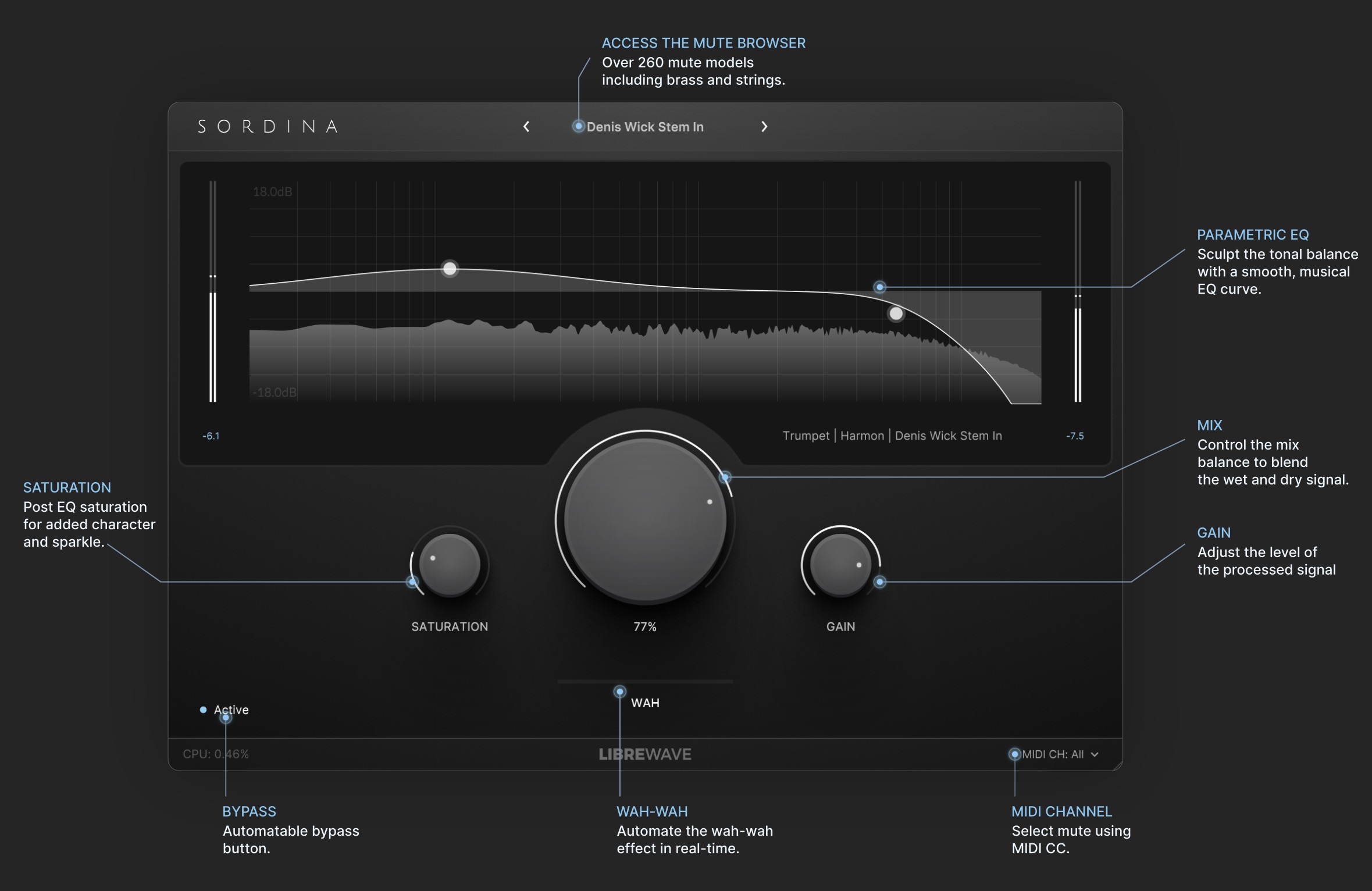
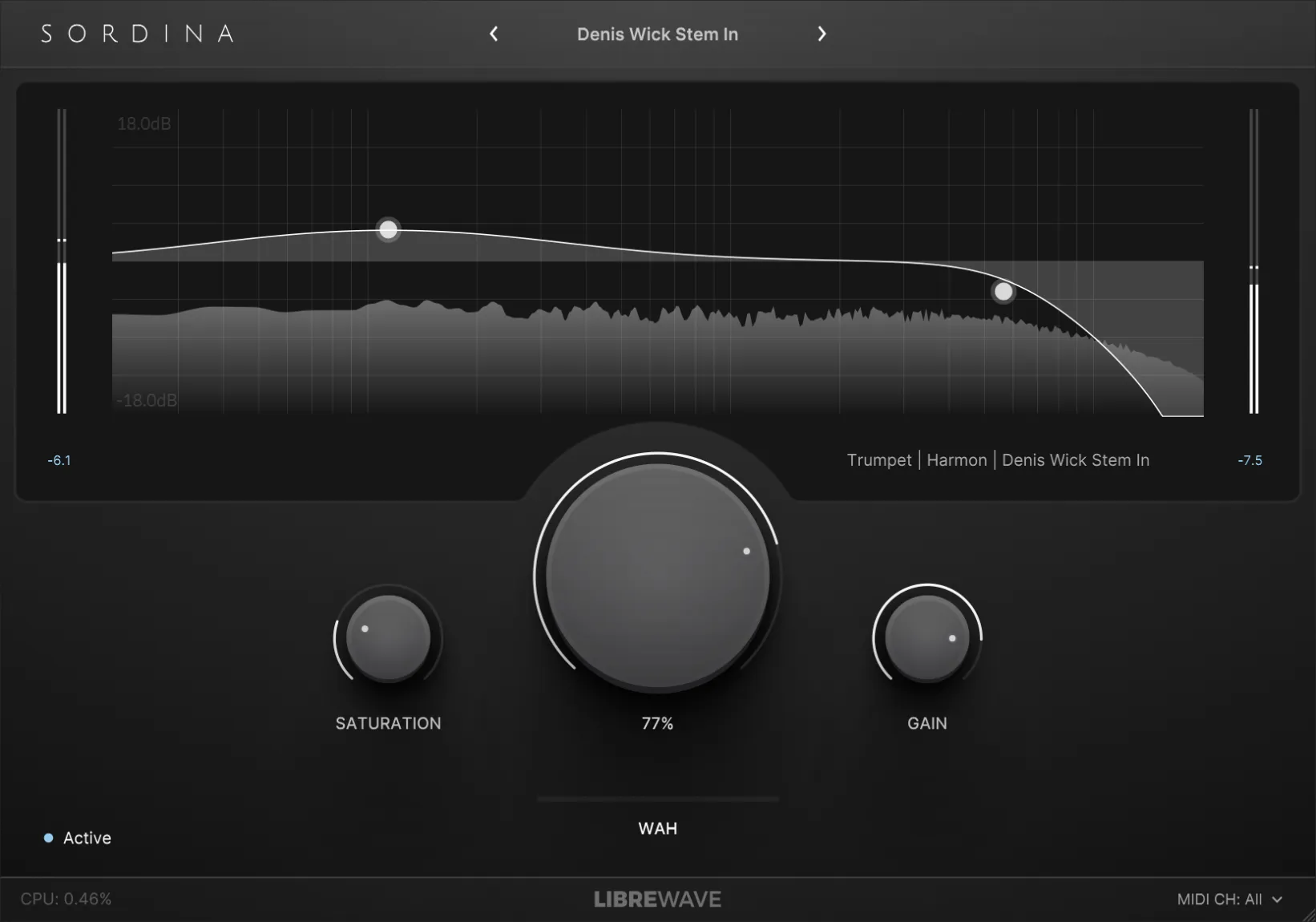
Sordina’s interface is designed to make it easy to browse mute models, shape their response, and blend the processed signal with the original audio.
Mute Selector
The name displayed at the top of the interface shows the currently loaded mute model.
Click the mute name to open the browser and select a different model. Use the left and right arrows to step through the available models.
EQ
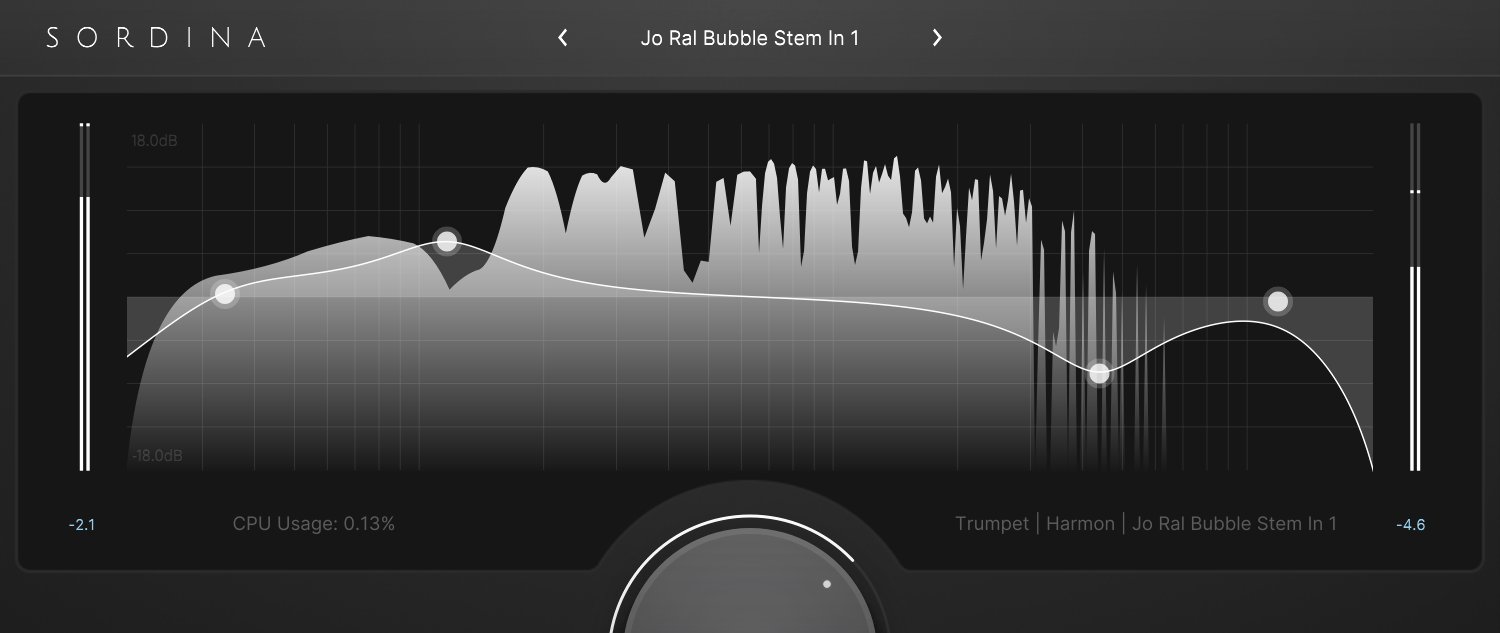
The EQ is applied after the mute model, allowing you to refine the resulting sound without changing the underlying mute response.
The central display shows the frequency response of the selected mute model. You can disable the spectrum analyser by right-clicking on the EQ graph and unchecking the analyser option in the context menu.
EQ nodes can be added to adjust the tonal of the signal. Click anywhere on the graph to create a new node.
Click and drag a node to adjust its frequency and gain. To adjust the Q (bandwidth) of a node, use the mouse wheel while hovering over it, or hold Shift and click and drag up or down.
Right-click a node to open the context menu, where you can delete the node or change its filter type. The available filter types are Low Pass, High Pass, Low Shelf, High Shelf, and Peak.
Saturation
The Saturation control applies harmonic saturation after the EQ stage.
Increasing this control can add warmth, presence, or sparkle to the processed signal.
Mix
The Mix control adjusts the balance between the processed and unprocessed signals.
- 100% applies the full mute effect.
- Lower values blend the original signal back into the output.
Gain
The Gain control adjusts the output level of the plugin.
Use this control to compensate for any level changes introduced by the mute model, EQ, or saturation.
Wah Control
The Wah slider controls the position of the wah filter for mute models that support the wah-wah effect.
This parameter can be automated within your DAW to create realistic wah-wah performances.
Bypass
The Active button enables or bypasses the plugin.
When bypassed, the incoming audio passes through Sordina without processing.
Level Meters
Input and output meters are displayed on either side of the EQ graph, allowing you to monitor signal levels before and after processing.
Quick Tips
- Hold Shift while clicking a knob to enter a specific value.
- Hold Ctrl while dragging a knob to make finer adjustments.
- Double-click a knob to reset it to its default value.
- Click the Sordina logo in the top-left corner of the interface to view information about the plugin.
Automation and MIDI Control
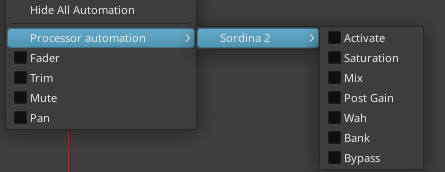
Most controls in Sordina are exposed as automatable parameters and can be controlled directly from your DAW.
Refer to your DAW’s documentation for information on creating and editing automation lanes.
MIDI Learn
Most controls in Sordina can be assigned to MIDI Continuous Controller (CC) messages.
Important
Sordina is an audio effect plugin rather than a virtual instrument. While MIDI control is supported, not all DAWs are capable of routing MIDI data to audio effect plugins.
If MIDI control does not appear to work, consult your DAW’s documentation to determine whether MIDI to audio effect routing is supported.
Assigning MIDI CCs
To assign a MIDI CC to a control, right-click the desired control to open the context menu. From here, you can either:
- Select MIDI Learn and move a hardware controller.
- Or select a specific CC number.
Once assigned, the control will respond to incoming MIDI CC data.
Automating Mute Selection
In addition to automating individual controls, it is also possible to automate mute selection.
Mute selection can be controlled using either host automation parameters or MIDI CC messages.
Host Automation
Two dedicated automation parameters are available:
- Bank
- Program
Together, these parameters determine which mute is loaded. The Bank parameter selects a mute bank, while the Program parameter selects an individual mute within that bank.
MIDI Control
Mute selection can also be controlled via MIDI CC messages:
- CC#0 selects the Bank value.
- CC#32 selects the Program value.
Changing CC#0 alone will not load a new mute. A mute change only occurs when CC#32 is received.
For example:
- Send CC#0 to select a Bank value.
- Send CC#32 to select a Program value.
- The corresponding mute is loaded immediately.
MIDI Channel Selection
A MIDI channel selector is available in the bottom-right corner of the interface.
This setting applies only to Bank and Program mute selection messages (CC#0 and CC#32).
It does not affect MIDI Learn assignments, which continue to respond according to their individual MIDI Learn configuration.
Bank and Program Mapping
The Bank and Program values follow the same ordering used internally by Sordina and are independent of how mutes are grouped within the mute browser.
For a complete list of Bank and Program values, see the Bank and Program Reference.
Mute Models
Sordina includes over 260 mute models covering brass, strings, and saxophone. Each model is designed to emulate the tonal characteristics of a real mute or performance technique.
For a complete list of available models and their corresponding Bank and Program values, see the Bank and Program Reference.
Variations
Many of the mutes include multiple variations. This is because the effect of a mute is influenced by a number of factors, including the instrument being played, the design of the mute, the acoustic environment, and the performer. As a result, two examples of the same mute type can sound quite different.
When exploring a particular mute, it is worth trying several models to find the one that best matches the sound you are looking for.
Brass
Brass instruments have a long tradition of mute usage, with different mute designs producing a wide range of tonal colours and performance effects.
Straight Mutes
Straight mutes are among the most common brass mutes. They produce a brighter, more focused sound and are widely used in both orchestral and concert band repertoire.
Cup Mutes
Cup mutes create a softer, warmer sound than straight mutes. They are particularly common in jazz and light music settings.
Harmon Mutes
Harmon mutes produce a distinctive nasal tone and are often associated with jazz trumpet performance. Many models support wah-style effects through the Wah control.
Bucket Mutes
Bucket mutes create a dark, mellow sound with reduced brightness and a softer attack.
Practice Mutes
Practice mutes are designed to significantly reduce the volume of the instrument. In doing so, they also produce a distinctive tonal change that differs from traditional performance mutes.
Other Brass Mutes
Sordina also includes a variety of less common brass mute designs, each offering its own unique tonal characteristics.
Strings
For strings, Sordina includes a range of conventional orchestral mutes, practice mutes, and specialised performance techniques. These models are available for violin, viola, cello, and double bass, allowing you to recreate a wide variety of muted and altered string timbres.
Orchestral Mutes
Orchestral mute models are based on commonly used concert mutes such as Tourte, leather, ebony, metal, aluminium, and other traditional designs. These mutes soften the sound of the instrument and alter its tonal balance while retaining the character of normal bowed performance.
Practice Mutes
Practice mutes are designed primarily to reduce the volume of the instrument. This produces a more heavily damped sound than conventional orchestral mutes.
Performance Techniques
In addition to traditional mutes, Sordina includes models based on a number of common string techniques.
Col Legno (tratto) emulates the distinctive tonal character associated with playing the strings using the wood of the bow.
Sul Ponticello emulates playing close to the bridge, producing a brighter sound with increased harmonic content.
Flautando produces a softer, airier tone with reduced emphasis on higher harmonics.
Sul Tasto emulates playing over the fingerboard, creating a warmer and more diffuse sound.
A Note on Performance Techniques
Unlike traditional mutes, techniques such as col legno, flautando, sul ponticello, and sul tasto involve changes in the way the instrument is played rather than simply altering its resonance. As a result, they cannot be recreated perfectly using Sordina’s subtractive processing approach.
For example, a real col legno performance includes additional sounds created by the wood of the bow contacting the strings, fingerboard, and bridge. Since these sounds are not present in the source material, they won’t be present in Sordina’s output.
Instead, these models aim to capture the overall tonal character of the technique. In ensemble contexts this is often sufficient, as the effect naturally blends into the sound of the section. In exposed solo passages, however, some of the defining characteristics of the original technique may be absent.
Saxophone
Sordina includes a selection of mute models designed specifically for saxophone instruments.
Bank and Program Reference
| CC0/BANK | CC32/PROGRAM | Description |
|---|---|---|
| 0 | 0 | Bass Trombone/Bucket/Humes & Berg Velvet Tone |
| 0 | 1 | Bass Trombone/Bucket/Jo Ral |
| 0 | 2 | Bass Trombone/Cup/Denis Wick |
| 0 | 3 | Bass Trombone/Cup/Humes & Berg Mic-a-Mute |
| 0 | 4 | Bass Trombone/Cup/Humes & Berg Stonelined |
| 0 | 5 | Bass Trombone/Cup/Jo Ral |
| 0 | 6 | Bass Trombone/Harmon/Generic |
| 0 | 7 | Bass Trombone/Harmon/Humes & Berg Wah Stem In |
| 0 | 8 | Bass Trombone/Harmon/Humes & Berg Wah Stem Out |
| 0 | 9 | Bass Trombone/Harmon/Jo Ral Bubble Stem In |
| 0 | 10 | Bass Trombone/Harmon/Jo Ral Bubble Stem Out |
| 0 | 11 | Bass Trombone/Misc/Buzz |
| 0 | 12 | Bass Trombone/Misc/Humes & Berg Cleartone |
| 0 | 13 | Bass Trombone/Misc/Humes & Berg Derby |
| 0 | 14 | Bass Trombone/Misc/Humes & Berg Pixie |
| 0 | 15 | Bass Trombone/Misc/Plunger 1 |
| 0 | 16 | Bass Trombone/Misc/Plunger 2 |
| 0 | 17 | Bass Trombone/Practice/Humes & Berg Sh Sh |
| 0 | 18 | Bass Trombone/Practice/Liberty |
| 0 | 19 | Bass Trombone/Straight/Denis Wick |
| 0 | 20 | Bass Trombone/Straight/Humes & Berg Brass |
| 0 | 21 | Bass Trombone/Straight/Humes & Berg Stonelined |
| 0 | 22 | Bass Trombone/Straight/Jo Ral Brass Bottom |
| 0 | 23 | Bass Trombone/Straight/Soulo |
| 0 | 24 | Cello/Effects/Col Legno 1 |
| 0 | 25 | Cello/Effects/Col Legno 2 |
| 0 | 26 | Cello/Effects/Flautando 1 |
| 0 | 27 | Cello/Effects/Flautando 2 |
| 0 | 28 | Cello/Effects/Flautando 3 |
| 0 | 29 | Cello/Effects/Sul Ponticello 1 |
| 0 | 30 | Cello/Effects/Sul Ponticello 2 |
| 0 | 31 | Cello/Effects/Sul Ponticello 3 |
| 0 | 32 | Cello/Effects/Sul Tasto 1 |
| 0 | 33 | Cello/Effects/Sul Tasto 2 |
| 0 | 34 | Cello/Effects/Sul Tasto 3 |
| 0 | 35 | Cello/Misc/WMute |
| 0 | 36 | Cello/Orchestral/Tourte 1 |
| 0 | 37 | Cello/Orchestral/Tourte 2 |
| 0 | 38 | Cello/Practice/Artino 1 |
| 0 | 39 | Cello/Practice/Artino 2 |
| 0 | 40 | Cello/Practice/Artino 3 |
| 0 | 41 | Cello/Practice/Rubber |
| 0 | 42 | Contrabass/Effects/Col Legno 1 |
| 0 | 43 | Contrabass/Effects/Col Legno 2 |
| 0 | 44 | Contrabass/Effects/Flautando 1 |
| 0 | 45 | Contrabass/Effects/Flautando 2 |
| 0 | 46 | Contrabass/Effects/Sul Ponticello 1 |
| 0 | 47 | Contrabass/Effects/Sul Ponticello 2 |
| 0 | 48 | Contrabass/Effects/Sul Ponticello 3 |
| 0 | 49 | Contrabass/Effects/Sul Tasto 1 |
| 0 | 50 | Contrabass/Effects/Sul Tasto 2 |
| 0 | 51 | Contrabass/Misc/WMute |
| 0 | 52 | Contrabass/Misc/Wire |
| 0 | 53 | Contrabass/Orchestral/Aluminium |
| 0 | 54 | Contrabass/Orchestral/Ebony |
| 0 | 55 | Contrabass/Orchestral/Leather |
| 0 | 56 | Contrabass/Orchestral/Poly |
| 0 | 57 | Contrabass/Orchestral/Tourte 1 |
| 0 | 58 | Contrabass/Orchestral/Tourte 2 |
| 0 | 59 | Contrabass/Orchestral/Tourte 3 |
| 0 | 60 | Contrabass/Orchestral/Wood |
| 0 | 61 | Contrabass/Practice/Metal |
| 0 | 62 | Contrabass/Practice/Rubber 1 |
| 0 | 63 | Contrabass/Practice/Rubber 2 |
| 0 | 64 | Euphonium/Practice/Denis Wick |
| 0 | 65 | Euphonium/Practice/Schlipf Mnozil |
| 0 | 66 | Euphonium/Straight/Humes & Berg Stonelined |
| 0 | 67 | Euphonium/Straight/Jo Ral |
| 0 | 68 | Flugelhorn/Bucket/Humes & Berg Velvet Tone |
| 0 | 69 | Flugelhorn/Cup/Humes & Berg Stonelined |
| 0 | 70 | Flugelhorn/Practice/Humes & Berg Aluminium |
| 0 | 71 | Flugelhorn/Practice/Humes & Berg Sh Sh |
| 0 | 72 | Flugelhorn/Practice/Humes & Berg Stonelined |
| 0 | 73 | Flugelhorn/Straight/Humes & Berg Aluminium |
| 0 | 74 | Flugelhorn/Straight/Humes & Berg Stonelined |
| 0 | 75 | French Horn/Cup/Humes & Berg Stonelined |
| 0 | 76 | French Horn/Misc/Humes & Berg Stop |
| 0 | 77 | French Horn/Practice/Balu |
| 0 | 78 | French Horn/Practice/Humes & Berg Sh Sh |
| 0 | 79 | French Horn/Straight/Balu |
| 0 | 80 | French Horn/Straight/Humes & Berg Philharmonic |
| 0 | 81 | French Horn/Straight/Humes & Berg Stonelined |
| 0 | 82 | French Horn/Straight/Warburton Tunable |
| 0 | 83 | Piccolo Trumpet/Cup/Tom Crown |
| 0 | 84 | Piccolo Trumpet/Harmon/Tom Crown Stem In |
| 0 | 85 | Piccolo Trumpet/Harmon/Tom Crown Stem Out |
| 0 | 86 | Piccolo Trumpet/Misc/Felt |
| 0 | 87 | Piccolo Trumpet/Practice/Jo Ral |
| 0 | 88 | Piccolo Trumpet/Practice/Tom Crown |
| 0 | 89 | Piccolo Trumpet/Straight/Denis Wick |
| 0 | 90 | Piccolo Trumpet/Straight/Jo Ral Brass Bottom |
| 0 | 91 | Piccolo Trumpet/Straight/Wallace |
| 0 | 92 | Saxophone/Practice/E-Sax Whisper |
| 0 | 93 | Saxophone/Practice/MMD |
| 0 | 94 | Saxophone/Practice/Sax Mute One |
| 0 | 95 | Trombone/Bucket/Humes & Berg Stonelined |
| 0 | 96 | Trombone/Bucket/Humes & Berg Velvet Tone |
| 0 | 97 | Trombone/Bucket/Jo Ral |
| 0 | 98 | Trombone/Cup/Denis Wick 1 |
| 0 | 99 | Trombone/Cup/Denis Wick 2 |
| 0 | 100 | Trombone/Cup/Humes & Berg Mic-a-Mute |
| 0 | 101 | Trombone/Cup/Humes & Berg Stonelined 1 |
| 0 | 102 | Trombone/Cup/Humes & Berg Stonelined 2 |
| 0 | 103 | Trombone/Cup/Jo Ral |
| 0 | 104 | Trombone/Cup/Tom Crown |
| 0 | 105 | Trombone/Harmon/Generic Stem In |
| 0 | 106 | Trombone/Harmon/Generic Stem Out |
| 0 | 107 | Trombone/Harmon/Humes & Berg Wah Stem In |
| 0 | 108 | Trombone/Harmon/Humes & Berg Wah Stem Out |
| 0 | 109 | Trombone/Harmon/Jo Ral Bubble Stem In |
| 0 | 110 | Trombone/Harmon/Jo Ral Bubble Stem Out |
| 0 | 111 | Trombone/Misc/Buzz |
| 0 | 112 | Trombone/Misc/Generic Plunger 1 |
| 0 | 113 | Trombone/Misc/Generic Plunger 2 |
| 0 | 114 | Trombone/Misc/Humes & Berg Cleartone 1 |
| 0 | 115 | Trombone/Misc/Humes & Berg Cleartone 2 |
| 0 | 116 | Trombone/Misc/Humes & Berg Derby |
| 0 | 117 | Trombone/Misc/Humes & Berg Pixie |
| 0 | 118 | Trombone/Misc/Humes & Berg Plunger |
| 0 | 119 | Trombone/Practice/Humes & Berg Sh Sh |
| 0 | 120 | Trombone/Practice/Liberty |
| 0 | 121 | Trombone/Practice/Softone Neoprene |
| 0 | 122 | Trombone/Straight/Alessi Vacchiano |
| 0 | 123 | Trombone/Straight/Denis Wick |
| 0 | 124 | Trombone/Straight/Humes & Berg Stonelined |
| 0 | 125 | Trombone/Straight/Jo Ral Brass Bottom |
| 0 | 126 | Trombone/Straight/Soulo |
| 0 | 127 | Trombone/Straight/Tom Crown 1 |
| 1 | 0 | Trombone/Straight/Tom Crown 2 |
| 1 | 1 | Trumpet/Bucket/Humes & Berg |
| 1 | 2 | Trumpet/Bucket/Humes & Berg Stonelined |
| 1 | 3 | Trumpet/Bucket/Humes & Berg Velvet Tone |
| 1 | 4 | Trumpet/Bucket/Jo Ral |
| 1 | 5 | Trumpet/Bucket/Jo Ral Brass Bottom |
| 1 | 6 | Trumpet/Bucket/Soulo |
| 1 | 7 | Trumpet/Cup/Champion |
| 1 | 8 | Trumpet/Cup/Denis Wick Adjustable 1 In |
| 1 | 9 | Trumpet/Cup/Denis Wick Adjustable 1 Out |
| 1 | 10 | Trumpet/Cup/Denis Wick Adjustable 2 In |
| 1 | 11 | Trumpet/Cup/Denis Wick Adjustable 2 Out |
| 1 | 12 | Trumpet/Cup/Denis Wick Adjustable 3 In |
| 1 | 13 | Trumpet/Cup/Denis Wick Adjustable 3 Out |
| 1 | 14 | Trumpet/Cup/Generic 1 |
| 1 | 15 | Trumpet/Cup/Generic 2 |
| 1 | 16 | Trumpet/Cup/Humes & Berg Cup 1 |
| 1 | 17 | Trumpet/Cup/Humes & Berg Cup 2 |
| 1 | 18 | Trumpet/Cup/Humes & Berg Cup 3 |
| 1 | 19 | Trumpet/Cup/Humes & Berg Cup 4 |
| 1 | 20 | Trumpet/Cup/Jo Ral Tritone |
| 1 | 21 | Trumpet/Harmon/Denis Wick Stem In |
| 1 | 22 | Trumpet/Harmon/Denis Wick Stem Out |
| 1 | 23 | Trumpet/Harmon/Generic Copper |
| 1 | 24 | Trumpet/Harmon/Generic Stem In 1 |
| 1 | 25 | Trumpet/Harmon/Generic Stem In 2 |
| 1 | 26 | Trumpet/Harmon/Generic Stem Out 1 |
| 1 | 27 | Trumpet/Harmon/Generic Stem Out 2 |
| 1 | 28 | Trumpet/Harmon/Humes & Berg Stem In |
| 1 | 29 | Trumpet/Harmon/Humes & Berg Stem Out |
| 1 | 30 | Trumpet/Harmon/Jo Ral Bubble Stem In 1 |
| 1 | 31 | Trumpet/Harmon/Jo Ral Bubble Stem In 2 |
| 1 | 32 | Trumpet/Harmon/Jo Ral Bubble Stem Out 1 |
| 1 | 33 | Trumpet/Harmon/Jo Ral Bubble Stem Out 2 |
| 1 | 34 | Trumpet/Harmon/LeBlanc Stem Half |
| 1 | 35 | Trumpet/Harmon/LeBlanc Stem In |
| 1 | 36 | Trumpet/Harmon/LeBlanc Stem Out |
| 1 | 37 | Trumpet/Harmon/Tom Crown Stem In |
| 1 | 38 | Trumpet/Harmon/Tom Crown Stem Out |
| 1 | 39 | Trumpet/Misc/Derby |
| 1 | 40 | Trumpet/Misc/Felt |
| 1 | 41 | Trumpet/Misc/Humes & Berg Cleartone 1 |
| 1 | 42 | Trumpet/Misc/Humes & Berg Cleartone 2 |
| 1 | 43 | Trumpet/Misc/Humes & Berg Pixie 1 |
| 1 | 44 | Trumpet/Misc/Humes & Berg Pixie 2 |
| 1 | 45 | Trumpet/Misc/Plunger 1 |
| 1 | 46 | Trumpet/Misc/Plunger 2 |
| 1 | 47 | Trumpet/Misc/Plunger 3 |
| 1 | 48 | Trumpet/Misc/Plunger 4 |
| 1 | 49 | Trumpet/Practice/Bremner Sh Sh 1 |
| 1 | 50 | Trumpet/Practice/Bremner Sh Sh 2 |
| 1 | 51 | Trumpet/Practice/Denis Wick Practice |
| 1 | 52 | Trumpet/Practice/Generic Practice 1 |
| 1 | 53 | Trumpet/Practice/Generic Practice 2 |
| 1 | 54 | Trumpet/Practice/Humes & Berg Melowah |
| 1 | 55 | Trumpet/Practice/Mute Tube |
| 1 | 56 | Trumpet/Practice/Yamaha 1 |
| 1 | 57 | Trumpet/Practice/Yamaha 2 |
| 1 | 58 | Trumpet/Straight/Alessi Vacchiano |
| 1 | 59 | Trumpet/Straight/Bach Plastic |
| 1 | 60 | Trumpet/Straight/Denis Wick Aluminium 1 |
| 1 | 61 | Trumpet/Straight/Denis Wick Aluminium 2 |
| 1 | 62 | Trumpet/Straight/Denis Wick Aluminium 3 |
| 1 | 63 | Trumpet/Straight/Denis Wick Aluminium 4 |
| 1 | 64 | Trumpet/Straight/Denis Wick Brass |
| 1 | 65 | Trumpet/Straight/Denis Wick Copper |
| 1 | 66 | Trumpet/Straight/Denis Wick Fibre |
| 1 | 67 | Trumpet/Straight/Denis Wick Pianissimo 1 |
| 1 | 68 | Trumpet/Straight/Denis Wick Pianissimo 2 |
| 1 | 69 | Trumpet/Straight/Denis Wick Wood |
| 1 | 70 | Trumpet/Straight/Generic Aluminium |
| 1 | 71 | Trumpet/Straight/Humes & Berg Stonelined 1 |
| 1 | 72 | Trumpet/Straight/Humes & Berg Stonelined 2 |
| 1 | 73 | Trumpet/Straight/Humes & Berg Stonelined 3 |
| 1 | 74 | Trumpet/Straight/Jo Ral Aluminium |
| 1 | 75 | Trumpet/Straight/Jo Ral Brass Bottom 1 |
| 1 | 76 | Trumpet/Straight/Jo Ral Brass Bottom 2 |
| 1 | 77 | Trumpet/Straight/Jo Ral Bubble Copper |
| 1 | 78 | Trumpet/Straight/Jo Ral Plastic |
| 1 | 79 | Trumpet/Straight/LeBlanc |
| 1 | 80 | Trumpet/Straight/Pro Tec Fibre |
| 1 | 81 | Trumpet/Straight/Soulo Copper |
| 1 | 82 | Trumpet/Straight/Tom Crown Aluminium |
| 1 | 83 | Trumpet/Straight/Tom Crown Copper |
| 1 | 84 | Trumpet/Straight/Trumcor Aluminium |
| 1 | 85 | Trumpet/Straight/Trumcor Brass |
| 1 | 86 | Trumpet/Straight/Trumcor Copper |
| 1 | 87 | Trumpet/Straight/Trumcor Lyric |
| 1 | 88 | Tuba/Practice/Denis Wick |
| 1 | 89 | Tuba/Practice/Schlipf |
| 1 | 90 | Tuba/Practice/Voigt |
| 1 | 91 | Tuba/Straight/Humes & Berg Stonelined |
| 1 | 92 | Tuba/Straight/Jo Ral |
| 1 | 93 | Viola/Effects/Col Legno 1 |
| 1 | 94 | Viola/Effects/Col Legno 2 |
| 1 | 95 | Viola/Effects/Flautando 1 |
| 1 | 96 | Viola/Effects/Flautando 2 |
| 1 | 97 | Viola/Effects/Sul Ponticello 1 |
| 1 | 98 | Viola/Effects/Sul Ponticello 2 |
| 1 | 99 | Viola/Effects/Sul Tasto 1 |
| 1 | 100 | Viola/Effects/Sul Tasto 2 |
| 1 | 101 | Viola/Orchestral/Alpine |
| 1 | 102 | Viola/Orchestral/Leather 1 |
| 1 | 103 | Viola/Orchestral/Leather 2 |
| 1 | 104 | Viola/Orchestral/Metal |
| 1 | 105 | Viola/Orchestral/Tourte 1 |
| 1 | 106 | Viola/Orchestral/Tourte 2 |
| 1 | 107 | Viola/Orchestral/Tourte 3 |
| 1 | 108 | Viola/Orchestral/Tourte 4 |
| 1 | 109 | Viola/Practice/Artino |
| 1 | 110 | Viola/Practice/Artino Petite |
| 1 | 111 | Viola/Practice/Artino Rubberized |
| 1 | 112 | Violin/Effects/Col Legno 1 |
| 1 | 113 | Violin/Effects/Col Legno 2 |
| 1 | 114 | Violin/Effects/Flautando 1 |
| 1 | 115 | Violin/Effects/Flautando 2 |
| 1 | 116 | Violin/Effects/Sul Ponticello + Mute |
| 1 | 117 | Violin/Effects/Sul Ponticello 1 |
| 1 | 118 | Violin/Effects/Sul Ponticello 2 |
| 1 | 119 | Violin/Effects/Sul Ponticello 3 |
| 1 | 120 | Violin/Effects/Sul Ponticello 4 |
| 1 | 121 | Violin/Effects/Sul Tasto + Mute |
| 1 | 122 | Violin/Effects/Sul Tasto 1 |
| 1 | 123 | Violin/Effects/Sul Tasto 2 |
| 1 | 124 | Violin/Effects/Sul Tasto 3 |
| 1 | 125 | Violin/Misc/Wire |
| 1 | 126 | Violin/Orchestral/Ebony |
| 1 | 127 | Violin/Orchestral/Leather 1 |
| 2 | 0 | Violin/Orchestral/Leather 2 |
| 2 | 1 | Violin/Orchestral/Metal |
| 2 | 2 | Violin/Orchestral/Tourte 1 |
| 2 | 3 | Violin/Orchestral/Tourte 2 |
| 2 | 4 | Violin/Orchestral/Tourte 3 |
| 2 | 5 | Violin/Orchestral/Tourte 4 |
| 2 | 6 | Violin/Orchestral/Tourte 5 |
| 2 | 7 | Violin/Practice/Artino Rubberized |
| 2 | 8 | Violin/Practice/Addario Spector |
| 2 | 9 | Violin/Practice/Generic Plastic |
| 2 | 10 | Violin/Practice/Generic Rubber |
Frequently Asked Questions
What mutes are included?
Sordina includes over 260 mute models covering brass, strings, and saxophone. These include standard orchestral mutes, practice mutes, harmon mutes, bucket mutes, cup mutes, straight mutes, plunger mutes, and a variety of string techniques. A complete list can be found in the Bank and Program Reference.
Can Sordina be used with instruments other than brass and strings?
Yes. Sordina can process any incoming audio signal.
Although it is commonly used with brass and string instruments, mute models can also be applied to synthesizers, vocals, percussion, sound effects, guitars, and other audio sources. Unconventional combinations can often produce interesting results.
Does Sordina work with virtual instruments?
Yes. Sordina works with any audio source, including virtual instruments, sample libraries, live recordings, and imported audio files.
Can Sordina be used on ensemble recordings?
For the most realistic results, dry solo recordings are generally preferred. However, it will also work well on ensembles and section recordings.
Does Sordina only work with dry audio?
No. While dry recordings typically produce the most natural and controllable results, Sordina can also work well with more reverberant recordings and virtual instruments recorded in larger spaces.
Can Sordina recreate every mute perfectly?
Not necessarily. The effectiveness of a mute model depends heavily on the source material being processed.
In addition, some string techniques such as col legno, flautando, sul ponticello, and sul tasto involve physical playing actions that introduce sounds not present in the original recording. Sordina can emulate the tonal characteristics of these techniques, but it cannot generate sounds that do not already exist within the source material.
Why are there multiple versions of the same mute type?
The sound of a mute can vary significantly depending on the instrument, the mute itself, the performer, and the acoustic environment.
For this reason, many mute types are represented by multiple models. If one variation does not produce the sound you are looking for, try auditioning other versions of the same mute type.
Can I automate mute changes?
Yes. Mute selection can be controlled using either host automation or MIDI CC messages.
The Bank and Program parameters can be automated directly within your DAW, or controlled via CC#0 and CC#32 respectively. See the Automation chapter for more information.
Does MIDI control work in every DAW?
Not always.
Sordina is an audio effect plugin rather than a virtual instrument. While MIDI control is supported by the plugin, some DAWs do not allow MIDI data to be routed to audio effect. In these cases, MIDI Learn and MIDI-based mute selection may not be available.
Does Sordina work in Pro Tools?
Yes. Sordina is available as an AAX plugin for Pro Tools on Windows and macOS.
If the plugin appears to load correctly but does not process audio, make sure the Active button in the bottom-left corner of the interface is enabled.
Can I save my own presets?
Sordina does not currently include an internal user preset system.
Plugin settings are saved automatically with your DAW project. If you would like to reuse settings across multiple projects, use your DAW’s built-in plugin preset system.
Does Sordina consume a lot of CPU?
No. Sordina is designed to be lightweight and can typically be used on multiple tracks simultaneously without significant CPU usage.
If additional performance is required, disabling the spectrum analyser can reduce processing overhead.
Troubleshooting
Sordina Does Not Appear in My DAW
If Sordina does not appear in your DAW’s plugin browser:
- Confirm that the correct plugin format was installed for your DAW.
- Perform a manual plugin rescan.
- Restart your DAW.
- Verify that the plugin has been installed to your DAW’s configured plugin location.
Remember that Sordina is an audio effect plugin. It will typically appear in your DAW’s effect or audio plugin categories, rather than under virtual instruments or MIDI effects. It must be inserted on an audio track, instrument track (not MIDI), or bus, depending on the capabilities of your DAW.
Pro Tools
In Pro Tools, Sordina appears in the Effect plugin category.
If Sordina loads correctly but does not appear to be processing audio, check the Active button in the bottom-left corner of the interface. For reasons currently unknown, this button defaults to the off state in Pro Tools and must be enabled before the plugin will process audio.
MIDI Control Is Not Working
Sordina is an audio effect plugin, and not all DAWs support routing MIDI data to audio effect plugins.
If MIDI CC assignments or mute selection controls are not responding:
- Verify that your DAW supports MIDI routing to audio effects.
- Confirm that MIDI data is being sent on the expected channel.
- Check that the control has been assigned to the correct CC number.
- When using Bank and Program control, verify that the MIDI Channel selector is configured correctly.
Alternatively use host parameter automation instead of MIDI control.
A Mute Does Not Sound Like the Real Technique
Some string techniques, such as col legno, sul ponticello, flautando, and sul tasto, involve changes in playing technique rather than the use of a physical mute.
Sordina can emulate the tonal character of these techniques, but it cannot generate sounds that are not present in the source material. As a result, some aspects of the original technique may be less apparent, particularly in exposed solo performances.
The Effect Sounds Too Strong
Try reducing the Mix control to blend some of the original signal back into the output.
You may also find that a different variation of the same mute type produces a more suitable result.
The Output Level Has Changed
Different mute models naturally affect the frequency balance of the signal, which can alter the perceived loudness.
Use the EQ, Saturation, Mix, and Gain controls to compensate for any level differences between mute models.
High CPU Usage
The spectrum analyser requires additional processing power.
If CPU usage becomes a concern, right-click the EQ graph and disable the analyser from the context menu.