Quick Start
This section will help you get up and running with Sordina in just a few minutes.
Loading Sordina
Insert Sordina as a plugin on the track you wish to process. Sordina should be placed either after a virtual instrument in the plugin chain, on a track containing audio, on an audio bus, or on the master output.
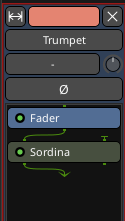
Selecting a Mute
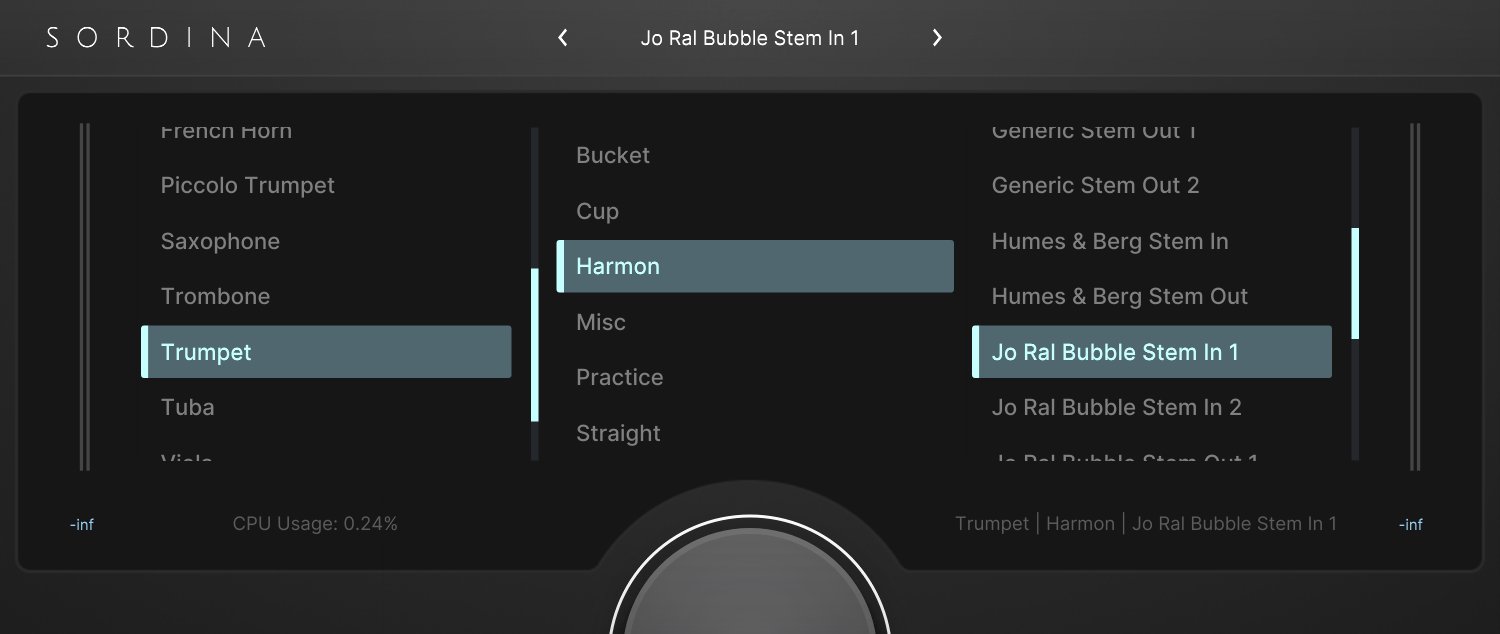
Click the text at the top of the interface, labelled “Click to Begin”, to open the mute selector. From here, you can browse the available categories and select a mute model.
Each mute model applies a different tonal transformation to the incoming audio signal. Experiment with different options to find the sound that best suits your project.
Adjusting the Wet/Dry Mix
Use the Mix knob to blend the processed and unprocessed signals.
- 100% Wet applies the full mute effect.
- Lower values blend some of the original signal back into the output.
Shaping the Sound
Adjust the Saturation and Gain knobs to fine-tune the character of the selected mute model.
Saving Presets
Sordina settings are saved automatically with your DAW project. To reuse settings across multiple projects, use your DAW’s built-in preset management system.