Preset Browser
Organisation
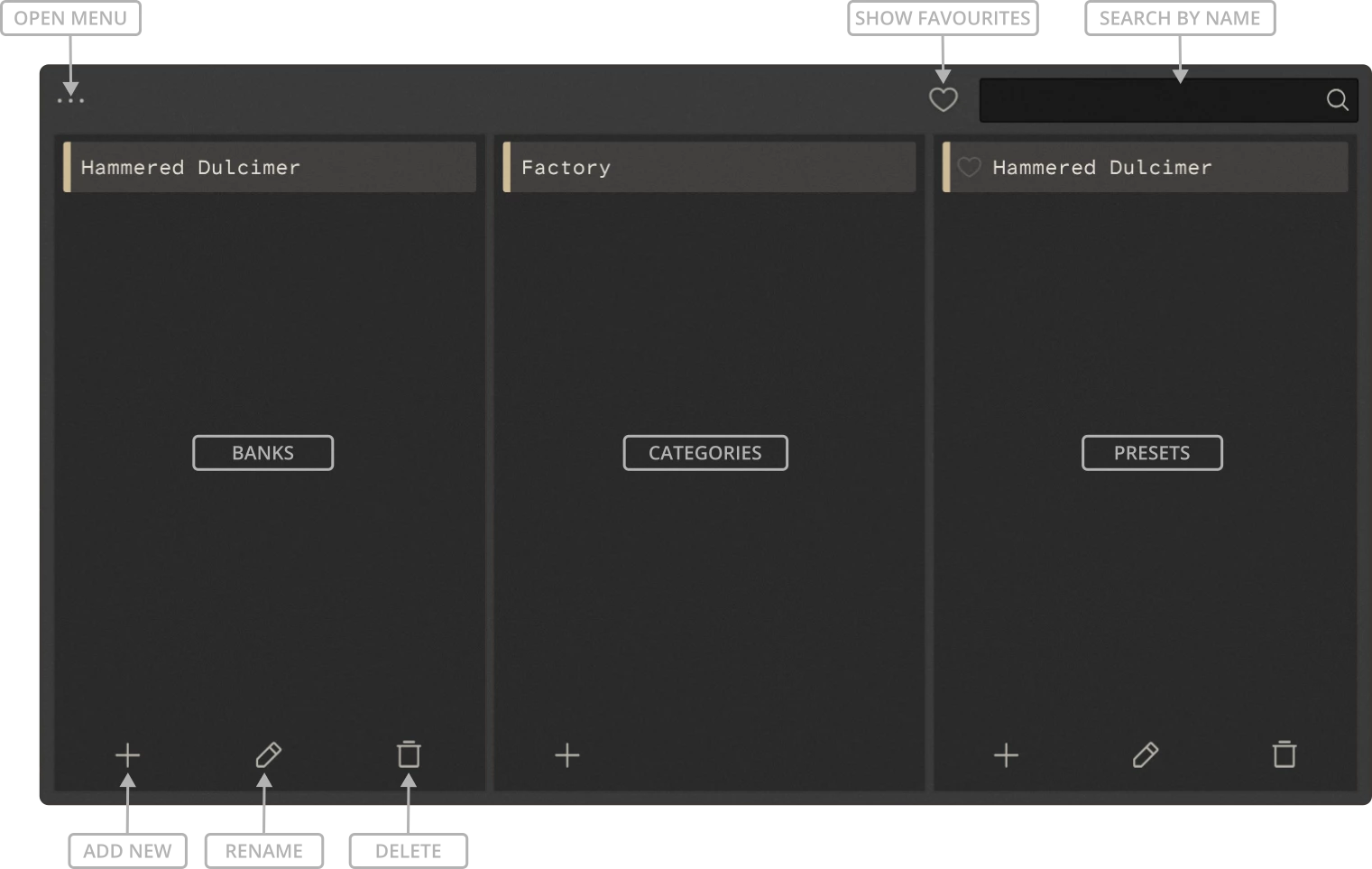
Presets are organised into three levels: Banks, Categories, and Presets. Select a bank and category to view the presets they contain. Click a preset to load it.
You can create your own banks, categories and presets using the + button at the bottom of each column. The pencil icon lets you rename the selected item, while the bin icon deletes it.
Search
The search field lets you search for presets by name.
Favourites
Click the heart icon to show only your favourite presets. You can mark individual presets as favourites using the heart icon next to their name.
Menu
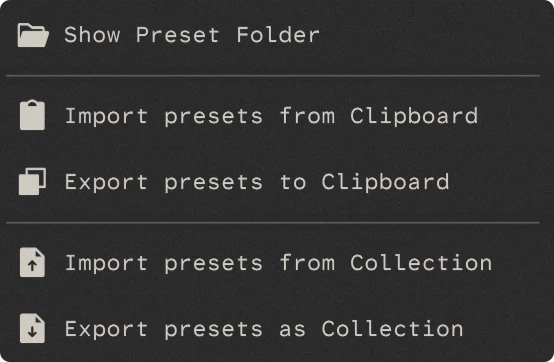
The three-dot menu in the top-left provides additional preset management options.
Show Preset Folder
Opens the folder containing your presets in the operating system’s file browser.
Import Presets from Clipboard
Imports preset data from the clipboard. If a category is selected, the presets are added to that category only. If no category is selected, all imported presets are added.
Export Presets to Clipboard
Copies presets to the clipboard so they can be pasted or shared elsewhere. If a category is selected, only its presets are exported. Otherwise, all presets are exported.
Import from Collection
Imports a .presetCollection file containing a collection of presets. The presets are added to the currently selected category, or to the general preset collection if no category is selected.
Export as Collection
Exports presets as a single .presetCollection file that can be saved or shared. If a category is selected, only its presets are included. Otherwise, all presets are exported.