Settings
Engine
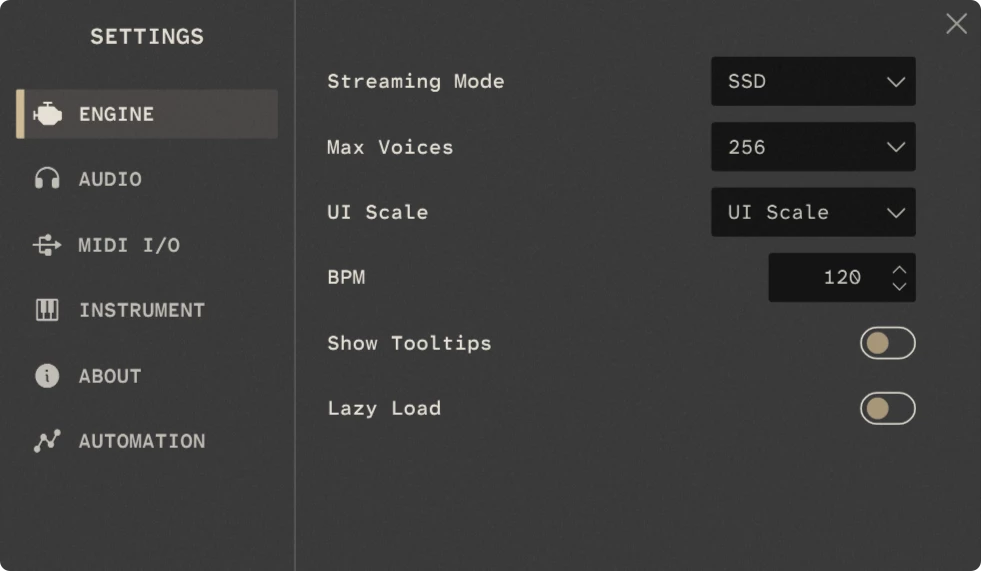
The Engine page contains settings that control how Rhapsody loads and plays samples, as well as a few general interface and playback options.
Streaming Mode
The setting automatically adjusts the internal preload and buffer sizes to suit the type of drive selected. This helps to optimise streaming performance.
Max Voices
Sets the maximum number of simultaneous voices Rhapsody can play. Lowering this value can reduce CPU and memory usage but may limit the number of notes that can play at the same time.
UI Scale
Controls the size of the Rhapsody interface. You can resize the interface manually by dragging the handle in the bottom-right corner. Alternatively, select a fixed size from the dropdown menu.
To return the interface to its default size, double-click the library name in the header.
BPM
Sets the tempo for libraries with tempo-locked features. This control is only available in the standalone version of Rhapsody. In the plugin version, the tempo is automatically read from your DAW.
Show Tooltips
Enables or disables the tooltips displayed when hovering over controls.
Lazy Load
When enabled, samples are loaded into RAM only when they are needed. This can reduce the initial memory usage of the library as unused samples aren’t loaded until they are played.
Audio
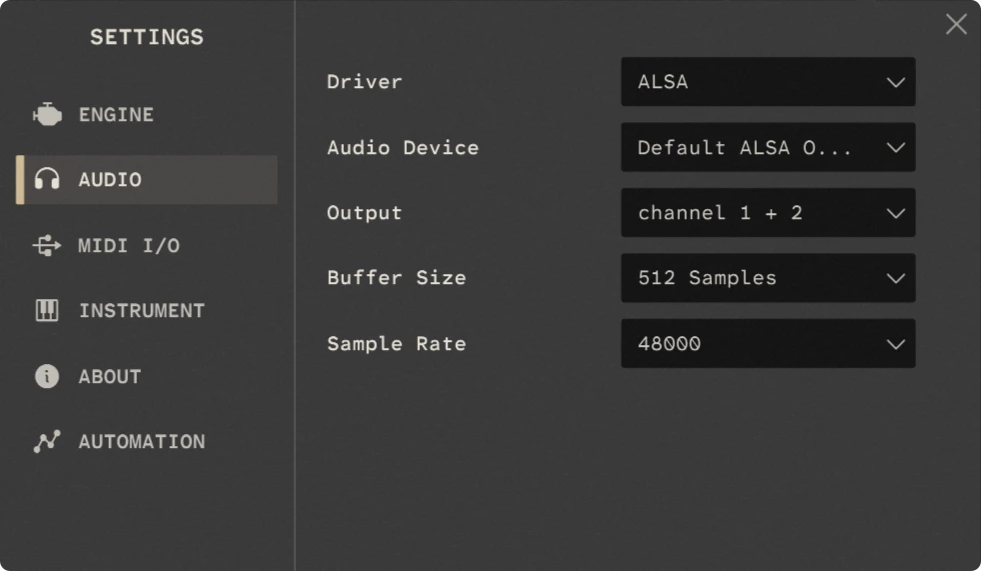
The Audio page contains the audio settings for the standalone version of Rhapsody. These controls are disabled in the plugin version, as audio configuration is handled by your DAW.
Driver
Selects the audio driver used by Rhapsody. The selected driver determines which audio devices are available.
Audio Device
Selects the audio device used by Rhapsody. The available devices depend on the selected driver. The selected device determines which output channels are available.
Output
Selects the output channels used by Rhapsody. The available outputs depend on the selected audio device.
Buffer Size
Sets the audio buffer size used by Rhapsody. Smaller buffer sizes reduce latency but can increase CPU usage, while larger buffer sizes increase latency but can improve performance.
Tip
For best results, use a buffer size that is a power of two, such as 128, 256, 512 or 1024 samples.
Sample Rate
Sets the audio sample rate used by Rhapsody. This should normally match the sample rate of your audio hardware.
MIDI I/O
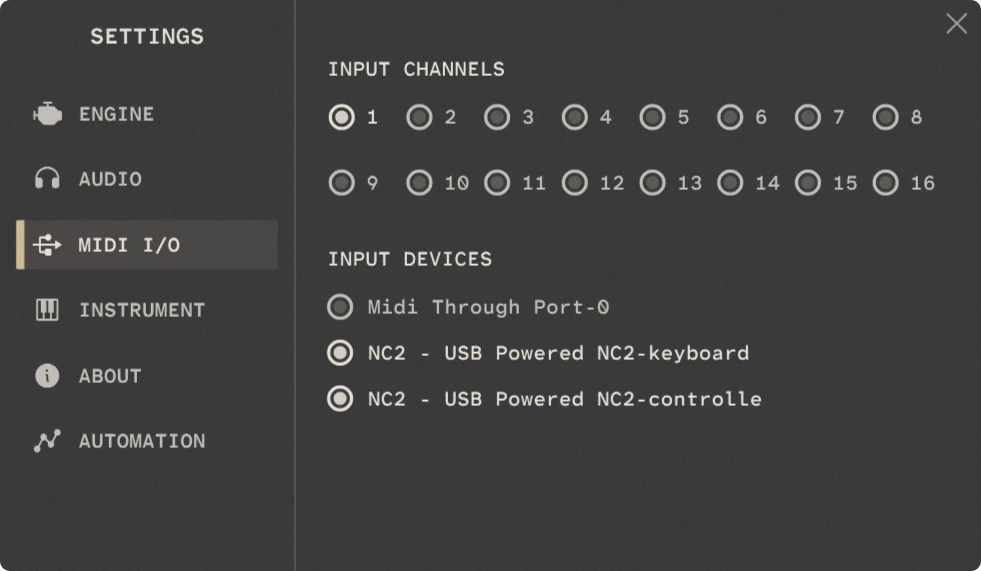
The MIDI I/O page lets you select which MIDI inputs Rhapsody receives MIDI data from.
Input Channels
Selects the MIDI channels that Rhapsody will respond to. Multiple channels can be enabled at the same time.
Double-clicking any channel toggles all channels on or off.
Input Devices
Selects which MIDI devices Rhapsody receives MIDI data from. Multiple devices can be enabled simultaneously.
This section is hidden in the plugin version because MIDI devices are managed by your DAW.
Instrument
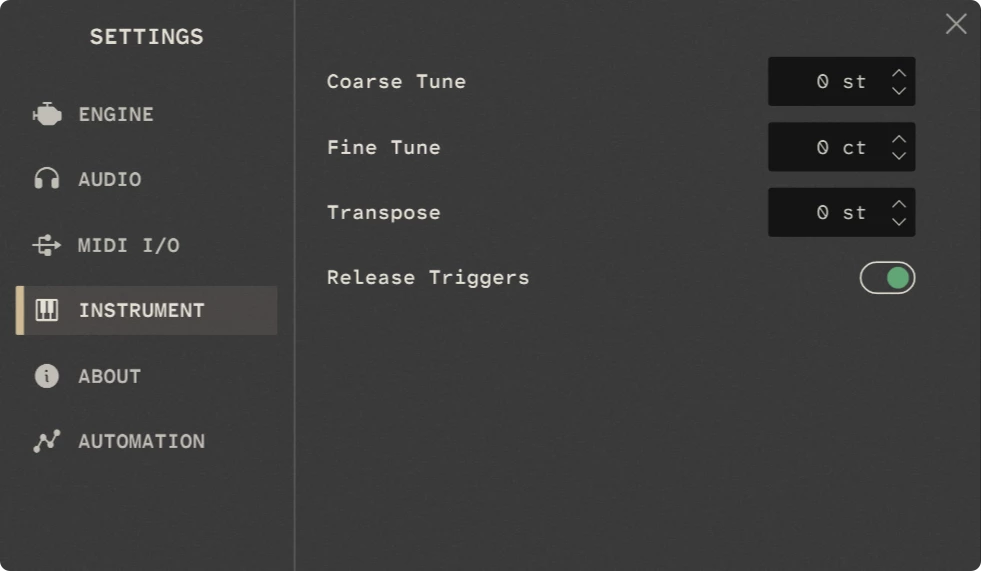
The Instrument page contains tuning controls and other settings specific to the current instrument.
Coarse Tune
Adjusts the tuning in semitone increments. The setting is applied when a note starts and doesn’t affect notes that are already playing.
Fine Tune
Adjusts the tuning in cent increments. The setting is applied when a note starts and doesn’t affect notes that are already playing.
Transpose
Transposes the instrument in semitone increments. The setting is applied when a note starts and doesn’t affect notes that are already playing.
The transposition is also reflected on the on-screen keyboard.
Release Triggers
Enables or disables release triggers for articulations that support them. When enabled, a release tail is played when a note is released.
Automation
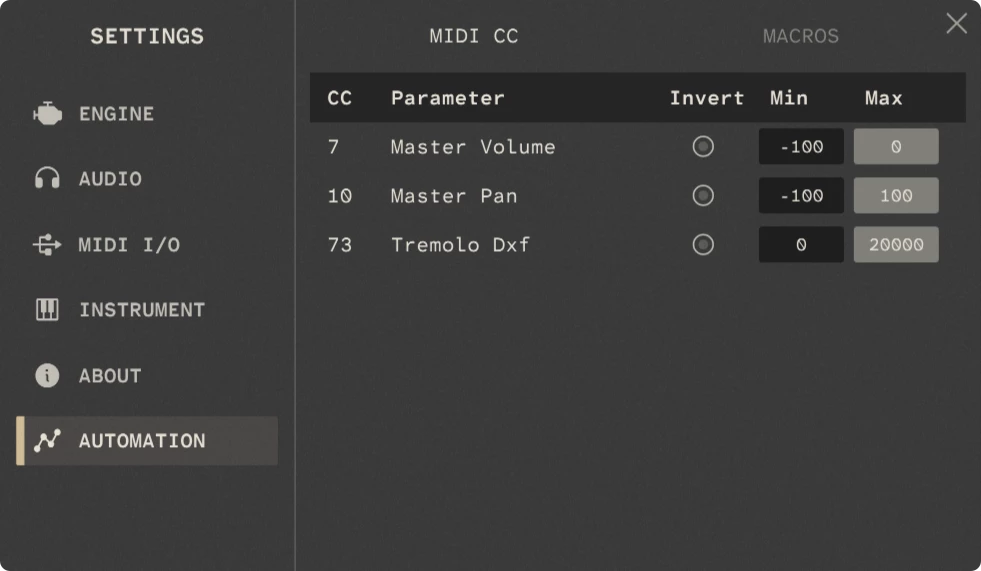
The Automation page provides an overview of the MIDI CC and Macro assignments for the current instrument.
Use the tabs at the top to switch the view between MIDI CC and Macros.
Each assignment shows the CC number or Macro assigned to a parameter, along with controls for modifying how it responds.
Invert
Reverses the direction of the assigned control. For example, a MIDI controller value that would normally increase a parameter will decrease it instead.
Min / Max
Sets the minimum and maximum values of the parameter that can be reached by the assigned CC or Macro. This lets you restrict the control to a specific range of values.
Note
Automation assignments are stored separately from presets in an external file. This means your assignments are preserved when you change presets or load another instance of the same library.