Interface
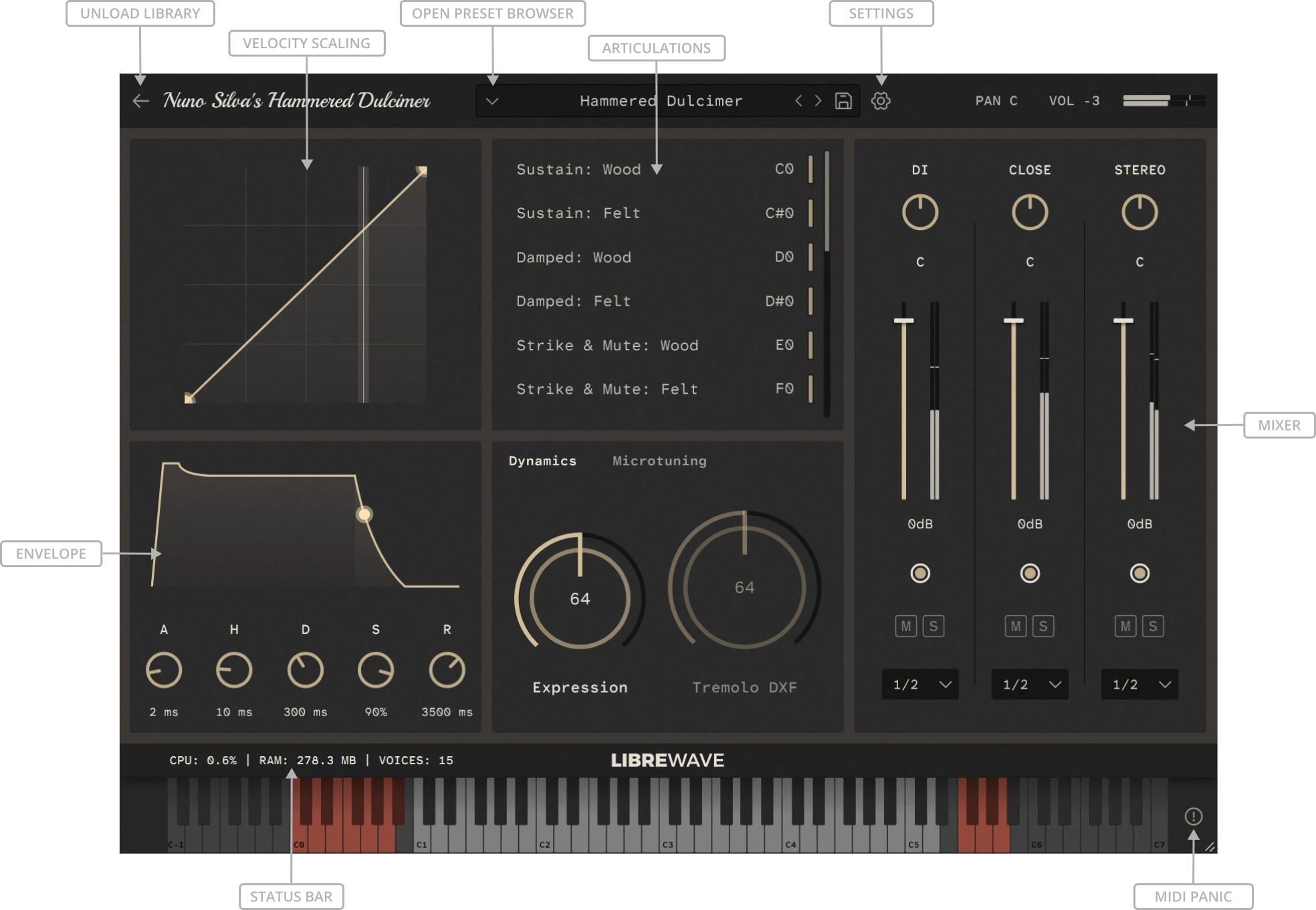
Basic Layout
The interface is divided into three main sections: the header bar at the top, the main body in the centre, and the status bar and keyboard at the bottom.
The are also additional windows for the Settings Panel and Preset Browser. See the Rhapsody user guide for more information about these.
Using Specific Values
Holding SHIFT and left-clicking a control displays a text box where you can enter a specific value. Press ENTER to confirm the value.
Fine Control
You may find that some knobs and sliders move in increments that are larger than you’d like. For finer control, hold down CTRL while adjusting them.
Default Values
All knobs and sliders can be reset to their default value by double-clicking.
MIDI Learn
Most knobs and sliders can be controlled using MIDI Continuous Controllers (CC), either from a hardware MIDI controller or from MIDI data sent by your DAW or plugin host.
Many controls have specific CC numbers assigned to them by default. You can change these assignments by right-clicking a control and selecting a CC number from the Assign MIDI CC popup.
Alternatively, select MIDI Learn and then move a control on your hardware MIDI controller.
MIDI CC assignments can also be removed from the same popup.
Important
Don’t assign CC94 because it is used internally by Rhapsody and reassigning it might cause unexpected behaviour.
Macros
Rhapsody includes a macro system with 32 predefined macro slots. These work in a similar way to MIDI CC controls and can be assigned from the same right-click popup menu.
Once a macro is assigned it can be controlled using the automation lanes provided by your DAW. A single macro can be assigned to multiple controls.
Note
The Automation tab in the Settings Panel provides an overview of all MIDI and Macro assignments.